
Start by naming the exact extrusion failure
‘Not extruding’ can describe several different failures. The printer may refuse to load filament, push no material during a manual extrusion, lay down thin or intermittent lines, click while trying to feed, or stop flowing only after several minutes. Those symptoms do not share one guaranteed fix.
Record when the failure begins and what the machine does at that moment. A printer that extrudes normally during loading but develops gaps only on fast sections may be exceeding the hotend's reliable flow capacity. A printer that cannot move filament during loading may have a blocked path, drive problem, sensor issue, incorrect temperature or clog. Accurate symptoms prevent a useful nozzle from being replaced for an upstream problem.
- No flow at all: test loading and the filament path before changing slicer flow values.
- Thin or missing lines: compare a stock profile and known-good filament before assuming hardware failure.
- Clicking or grinding: stop repeated attempts so the drive gear does not chew a deep notch into the filament.
- Flow stops later in the print: note elapsed time, enclosure temperature, hotend-fan behavior and the shape of the unloaded filament.
Make the machine safe before opening the toolhead
A clog procedure may involve hot metal, moving axes and delicate heater or temperature-sensor wires. Keep hands and tools clear while the printer is energized. Use only the manufacturer procedure for the exact printer and hotend, and let the assembly cool before touching or removing components unless that procedure specifically requires a controlled heated step.
Stop, switch off and unplug the printer if you see damaged insulation, a scorched connector, smoke, melted wiring, an implausible temperature reading or heat that continues after the heater is disabled. Those are repair-safety issues, not ordinary extrusion tuning. Do not raise a temperature limit or bypass thermal protection to force material through.
Check the spool and external filament path first
Begin with the parts you can inspect without dismantling the hotend. Confirm that the filament can leave the spool freely, has not crossed under another loop and is not snagging on a spool edge. Verify that every PTFE tube is fully seated, correctly routed and free of sharp bends. On a multi-material system, identify whether the material reaches each junction instead of treating the complete path as one hidden mechanism.
Unload the filament using the printer's approved procedure and inspect it. A deep ground-out notch points to drive gear slip against resistance. A swollen, mushroomed or sharply deformed tip can reveal where the material became trapped. Brittle filament that repeatedly snaps may be a material condition problem, but drying is not a universal cure; compare a compatible known-good spool before deciding.
Return temperature, nozzle and speed assumptions to a known baseline
Confirm the physical nozzle diameter, the nozzle selected in the slicer and the material profile. Start with a manufacturer-tested profile for that printer and filament family. A temperature that is too low can increase flow resistance, while a requested speed, layer height or line width that exceeds the hotend's melt capacity can create under-extrusion even when the hardware is healthy.
Do not solve a flow problem by immediately increasing temperature beyond the filament or printer manufacturer's limits. If a stock profile and known-good material extrude correctly, compare the failed project one variable at a time: nozzle size, material profile, maximum volumetric speed, line width, layer height and commanded print speed.
Separate an extruder problem from a hotend clog
The goal is to discover where filament stops moving. Inspect the drive gear for debris, misalignment and model-specific tension. Too little grip can allow slipping; too much tension can deform or grind the material. Confirm that the extruder motor and gear actually turn when a safe manual extrusion is commanded at the correct temperature.
Manufacturer troubleshooting often isolates the feed system from the hotend. Bambu Lab's A1-series procedure, for example, checks whether the extruder can move filament after the hotend is removed; smooth movement there points toward the hotend, while continued resistance points upstream. That procedure is specific to the A1 family. Do not copy its disassembly steps onto a P1, X1, Creality, Prusa, Anycubic or another toolhead.
Use the correct clog procedure for the installed hotend
A partial clog may still pass a thin strand in open air but fail when the printer needs consistent pressure. A complete blockage may prevent loading altogether. A cold pull can remove residue from some hotends, but temperatures, access steps and compatible materials vary by machine and nozzle. Some nozzle types have explicit restrictions.
Follow the exact printer manufacturer's unclogging guide. Keep the bed lowered when directed, use only approved needles or tools and protect heater and thermistor wires. If the guide requires hotend removal, photograph connectors and routing before disassembly. Replace a nozzle only after the blockage has been isolated to it or the component is confirmed damaged or worn.
Consider heat creep only when the evidence fits
Heat creep occurs when filament softens too far above the intended melt zone and jams. It often appears after printing successfully for a while, and it may leave a widened or deformed filament end. A blocked or failed hotend fan, excessive enclosure temperature for the material, a damaged liner or an assembly problem can contribute.
Heat creep is one possible cause, not a label for every clog. Prusa's guidance explicitly cautions that it is not usually the most probable explanation. Check fan operation, airflow obstruction, the installed hotend parts and the model-specific assembly instructions before buying a new fan or heatbreak.
Verify the repair with a controlled extrusion and print
After clearing the confirmed restriction or correcting the feed path, reassemble the printer exactly as specified. Load a known-good filament and confirm a steady manual extrusion at the approved temperature. Watch for renewed clicking, leakage above the heater block, unstable temperature or filament dust around the drive gear.
Then print a small model using the stock nozzle and material profile before returning to the failed job. Verify the first layer, continuous walls and a sustained higher-flow section. Change only one setting at a time. A printer that extrudes briefly on the bench but fails again after heating for several minutes has not yet passed the repair.
When to stop troubleshooting and request service
Stop when the safe test requires electrical work, uncertain firmware changes, force against a hot assembly or disassembly beyond the manufacturer's owner procedure. Repeated clogs can come from a hotend leak, damaged PTFE path, failed fan, worn extruder component, incorrect replacement part or assembly error. Replacing another nozzle without confirming the system can add cost without fixing the cause.
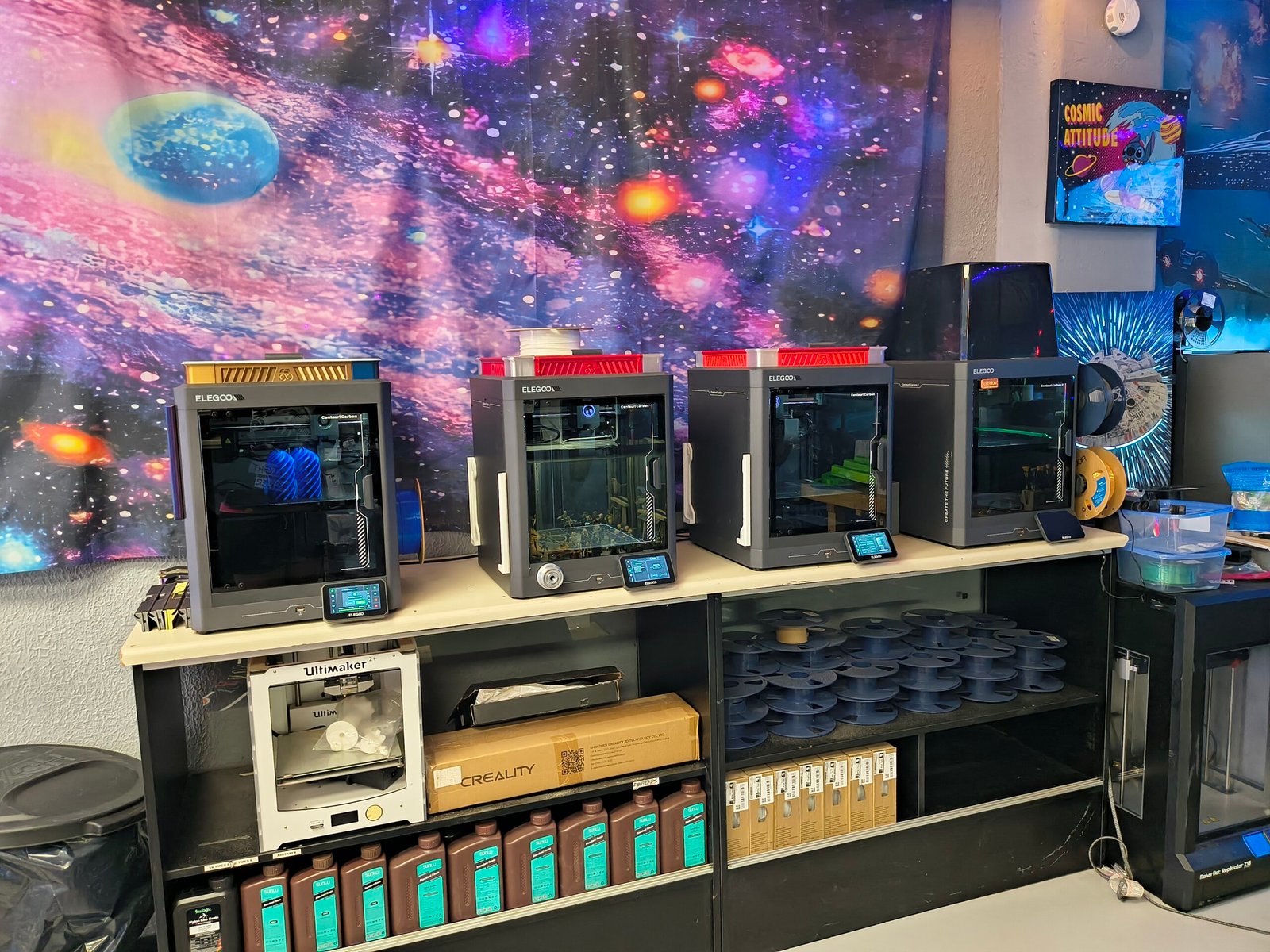
Cosmic 3D's Repair Bay in Del City serves Oklahoma City-area owners with multi-brand extrusion diagnosis. Bring the printer, its power cable and any proprietary material system needed to reproduce the fault. Include the exact error, failed sample, filament and changes already attempted. The useful outcome may be a simple correction, a repair estimate, a manufacturer-support referral or a recommendation not to spend more on the machine.
Frequently asked questions
Why is my 3D printer moving but not extruding filament?
Possible causes include a spool snag, blocked PTFE path, slipping or clogged extruder, incorrect temperature, partial or complete hotend clog, heat creep or a slicer profile demanding more flow than the hotend can sustain. Identify where filament stops before replacing parts.
Does clicking from the extruder mean the nozzle is clogged?
Not always. Clicking means the drive system cannot advance filament as commanded. A clog can cause that resistance, but so can a tangled spool, tight tube path, low temperature, incorrect tension, excessive flow demand or a blockage in the extruder.
Should I increase nozzle temperature when filament will not extrude?
First verify the correct material profile and the manufacturer's approved range. A slightly incorrect low temperature can increase resistance, but exceeding the filament, hotend or printer limits can damage equipment or create a safety hazard. Follow the exact model's troubleshooting procedure.
Will replacing the nozzle fix under-extrusion?
Only when the nozzle is confirmed blocked, damaged or worn. Under-extrusion can originate at the spool, tube, drive gears, extruder, hotend cooling, temperature settings or slicer flow demand, so a new nozzle may leave the real fault unchanged.
When should I take a non-extruding printer in for repair?
Request service when the jam returns after the approved cleaning procedure, the machine shows heating or wiring problems, the hotend leaks, a fan or sensor has failed, the required disassembly is uncertain or repeated testing would require unsafe force or temperature changes.